
Module 5 – Spreadsheets
Lesson 2 – Data Entry and Data Types
Understanding data types is essential for accurate calculations. Spreadsheets automatically identify the type of data entered, so entering values correctly prevents errors later.
1. Types of data in spreadsheets
- Text – labels, headings, descriptions (example: January, Total Sales)
- Numbers – values used in calculations (example: 125, 12.5)
- Dates – entered in standard date format (example: 01/01/2025)
- Times – hours and minutes (example: 09:30)
- Logical values – TRUE or FALSE
- Scientific notation – very large or small numbers shown as 1.2E+05 (ICDL requirement)

2. Entering text
- Type text directly into a cell.
- Text is usually left-aligned.
- Use text for headings and labels.
3. Entering numbers
- Type numbers without commas (use 1200, not 1,200).
- Do not type £ or $ symbols – apply currency formatting later.
- Numbers appear right-aligned by default.
- Numbers starting with zeros must be entered as text using an apostrophe (example: ‘00123).
- Numbers may automatically convert to scientific notation if very large.

4. Entering dates
- Use standard date format (example: 01/01/2025).
- If recognised correctly, the spreadsheet right-aligns the date.
- Dates are stored as serial numbers (ICDL requirement).
- Incorrect entry may turn the date into text, breaking calculations.
5. Entering time
- Use the format hh:mm (example: 14:30).
- Times behave like numbers and can be added or subtracted.
6. Editing data
- Double-click a cell to edit it.
- Edit in the Formula bar.
- Press Delete to clear a cell.
- Press F2 (Excel) to enter edit mode quickly.
7. Common data entry errors
- ##### – the column is too narrow to display the value.
- #VALUE! – incorrect data type in a calculation.
- #NAME? – a function name is typed incorrectly.
- ‘123 – number stored as text due to an apostrophe.

8. Data formatting
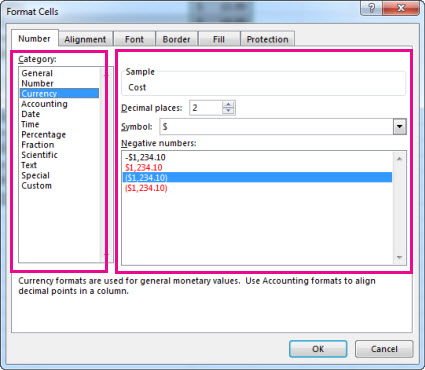
- Currency – adds symbols such as £ or $.
- Percentage – converts decimals into percentages.
- Number format – controls decimal places.
- Date formats – short date, long date, custom formats.
- Rounding – formatting may visually round numbers.
9. Best practices for accurate data
- Use one consistent data type per column.
- Do not mix text and numbers in the same column.
- Avoid blank rows in structured data.
- Place headings in the first row.
- Apply formatting after entering all raw data.
10. Practical Activity
- Create a table with headings: Item, Quantity, Price, Date Purchased.
- Enter at least five rows of data.
- Format the Price column as currency.
- Enter a date and apply long date formatting.
- Correct any errors such as ##### or #VALUE!.