
Module 2 – IT Security
Lesson 3 – Network Security
Learning outcomes
By the end of this lesson, you should be able to:
- Recognise different network types such as LAN, WLAN, WAN and VPN.
- Explain how connecting to networks affects data privacy and security.
- Describe the role of a network administrator in managing security.
- Explain how firewalls work and understand their limitations.
- Identify wireless security options such as WEP, WPA/WPA2/WPA3 and MAC filtering.
- Describe the risks of using unprotected wireless networks.
- Enable or disable a personal hotspot securely.
Network security is about protecting data while it is being sent between devices.
As soon as a device joins a network, it becomes part of a shared environment – this brings
many benefits, but also new risks that must be managed.

1. Understanding networks
A network is a group of connected computers, devices, or systems that can
share information. Networks make communication and data sharing possible, but they also
introduce security risks such as malware, unauthorised access and data interception.
1.1 Common network types
- LAN (Local Area Network): A small network usually within one building
such as a home, school or office. Provides fast, local communication. - WLAN (Wireless Local Area Network): A LAN that uses Wi-Fi instead of cables.
Devices connect wirelessly through a router or access point. - WAN (Wide Area Network): A large network connecting multiple locations
over long distances, such as a company operating in many cities. The internet is the
world’s largest WAN. - VPN (Virtual Private Network): Creates an encrypted connection (“tunnel”)
over the internet, improving privacy when using untrusted networks.
1.2 Security implications of network connections
- Joining a network allows devices to communicate, but it also exposes them to threats such as malware and hacking attempts.
- Unsecured networks may allow attackers to intercept data or gain access to files.
- Privacy may be compromised if data is sent without encryption.

Quick check: Network types
- A home Wi-Fi set up in your flat → WLAN / LAN
- A company network linking branches in several countries → WAN
- A secure “tunnel” used when working from home → VPN
1.3 The role of the network administrator
In workplace environments, a network administrator manages and protects
the network. Responsibilities include:
- Controlling authentication (verifying user identity).
- Managing authorisation (what users can access).
- Monitoring accounting/logging (tracking user and system activity).
- Installing updates and security patches on network systems.
- Monitoring network traffic for unusual or malicious behaviour.
- Responding to malware or intrusion attempts within the network.

Scenario: Who should you tell?
You notice that files on a shared drive are suddenly missing and colleagues cannot access them.
In a workplace, this should be reported immediately to the network administrator
or IT support team, as it may indicate a security or backup issue.
2. Firewalls
A firewall is a crucial network security component that filters network
traffic. It decides which connections should be allowed and which should be blocked,
based on predefined rules.
2.1 Types of firewalls
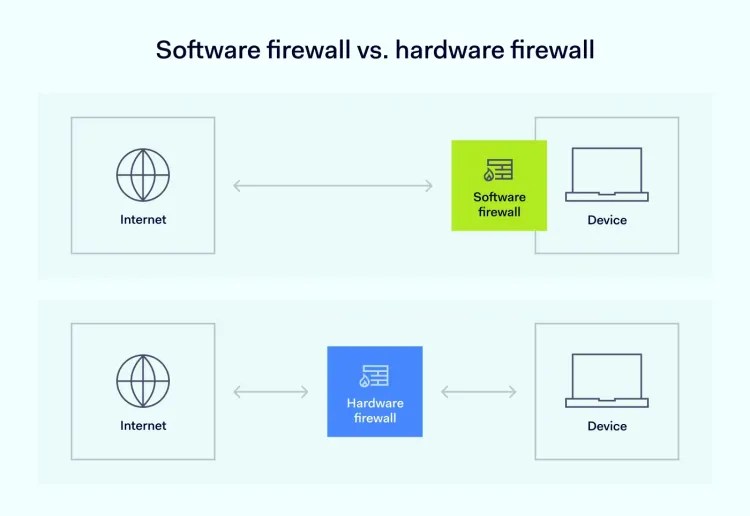
- Hardware firewalls: Built into routers or dedicated firewall boxes.
They protect the entire network and act as a secure barrier between the network and the internet. - Software firewalls: Installed on individual computers. They protect
the device by filtering incoming and outgoing connections.
2.2 Function & limitations
- Firewalls block unauthorised connections and suspicious activity.
- They help prevent hacking attempts and reduce the risk of malware reaching the system.
- They cannot stop all threats, especially those allowed through by user behaviour (for example, opening a malicious email attachment).
2.3 Practical skills
- Knowing how to turn a personal firewall on or off (for example, in Windows Security or macOS settings).
- Allowing or blocking an application from accessing the internet.
- Checking firewall notifications and responding appropriately.
Self-check: What can a firewall do?
- Block suspicious incoming connections → Yes ✅
- Physically stop someone stealing your laptop → No
- Prevent all users from ever clicking a bad link → No
- Control which apps on your PC can access the internet → Yes ✅
3. Wireless security
Wireless networks (Wi-Fi) require strong security controls because signals can be received
outside the building, for example from the street or neighbouring rooms.
3.1 Wireless security options & their limitations
- WEP (Wired Equivalent Privacy): An outdated method of Wi-Fi protection.
Easily hacked and should not be used. - WPA / WPA2 (Wi-Fi Protected Access): Strong, widely used encryption standards.
WPA2 is highly recommended for modern networks. - WPA3: The newest and most secure option, offering improved protection for modern devices.
- MAC filtering: Allows only approved devices to connect by their unique MAC address.
Helpful but not foolproof as addresses can be spoofed (faked). - SSID hiding: Prevents the network name from being visibly broadcast. Helps reduce casual access attempts but offers limited security on its own.

3.2 Risks of using unprotected wireless networks
Connecting to an unprotected or public Wi-Fi can lead to:
- Eavesdropping: Attackers can view unencrypted data being transmitted
(for example, websites without HTTPS). - Network hijacking: Hackers may redirect traffic to fake websites.
- Man-in-the-middle attacks: Attackers intercept communication between
the user and the website or service.
Scenario: Free Wi-Fi at a café
You connect to an open Wi-Fi network called “FreeCaféWiFi”. You log in to email and
enter your password on a website that does not use HTTPS. An attacker on the same
network could potentially intercept that password.
Better practice: Use a VPN, avoid logging into sensitive accounts, or use mobile data instead.
3.3 Personal hotspot security
A personal hotspot allows your phone to share its mobile data connection
with other devices. To use it safely:
- Enable it only when needed and turn it off afterwards.
- Use a strong password and WPA2/WPA3 encryption if available.
- Do not share the password with untrusted users.
- Watch for unknown devices connected to your hotspot and disconnect them.

Quick check: Wi-Fi security
- Best home Wi-Fi choice today → WPA2 or WPA3 with a strong password ✅
- Open Wi-Fi with no password → High risk
- Hidden SSID with no encryption → Still not secure
4. Safe use of networks
Whether using home, work or public networks, best practices must be followed to maintain security.
4.1 General safe practices
- Use encrypted connections (HTTPS websites, VPNs) whenever possible.
- Keep devices and apps updated to reduce vulnerabilities.
- Use VPNs when on public or untrusted networks.
- Disable file sharing unless it is needed, especially on public networks.
- Log out of sensitive accounts when finished, particularly on shared devices.

Network safety mini-checklist
- ✔ Is the Wi-Fi using WPA2 or WPA3?
- ✔ Is your firewall turned on?
- ✔ Are your operating system and router firmware up to date?
- ✔ Are you avoiding sensitive logins on open public Wi-Fi?
5. Practical activity
- Check whether your home or office router uses WPA2 or WPA3 encryption. If it uses WEP or is open, plan how to change it.
- Review your device’s firewall settings and ensure it is enabled.
- Create a list of three risks of using public Wi-Fi and write how each one can be reduced or avoided.
- Check if your router or device needs firmware or software updates and note when they were last updated.
- Practise enabling a personal hotspot securely and then turning it off again when finished.