
Module 1 – Computer Essentials
Lesson 3 – File and Folder Management
File management is one of the most important basic computer skills. It includes creating, organising, naming,
locating, copying, moving and deleting files and folders. Good file management makes work faster, prevents
accidental loss and keeps your device running efficiently.
This lesson covers drives, storage locations, file types, naming rules, folder organisation, cloud storage,
compression and safe file handling.
Learning outcomes
By the end of this lesson you should be able to:
- Explain the difference between files, folders and drives.
- Recognise common file types and extensions.
- Create, rename, move, copy and delete files and folders.
- Search for files using File Explorer and search tools.
- Use basic sorting, viewing and compression options.
- Apply good backup and file management practices.
Quick warm-up
Think about your own computer or phone. Where would you normally find:
- A photo you just took?
- A document you downloaded from email?
- A song or audio file?
Show sample answers
Photos – usually in Pictures / Photos.
Downloads – usually in the Downloads folder.
Music – usually in Music / Audio folders or a music app library.
1. Understanding files and folders
A file is a piece of data stored on a computer. Examples include:
- Documents (.docx, .pdf)
- Images (.jpg, .png)
- Videos (.mp4)
- Spreadsheets (.xlsx)
- Audio files (.mp3)
- Applications (.exe)
A folder is a container used to organise files. Common folders include:
- Documents
- Downloads
- Pictures
- Music
- Videos
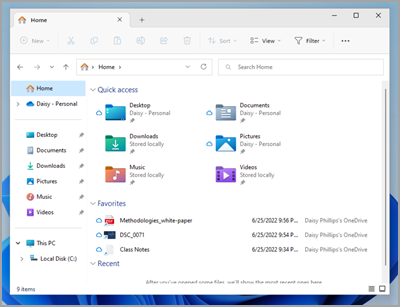
Check your understanding: file or folder?
Example 1: “Holiday_Photos” (icon looks like a folder) → Folder
Example 2: “Report_May_2025.docx” → File
Example 3: “Music” (default Windows folder) → Folder
2. Drives and storage locations
Computers store files on drives. Common types include:
- Local Disk (C:) – main internal drive where Windows and programmes are stored.
- D: or E: – additional internal drives or partitions.
- USB flash drives – portable storage.
- External hard drives – larger removable storage.
- Network drives – storage provided by an organisation.
- Cloud storage – Google Drive, OneDrive, Dropbox.
Cloud storage advantages
- Access files from any device.
- Share files easily with others.
- Automatic syncing and backup.
Scenario: where should you save?
You need to work on a document at home and at college. The best option is to save it in
cloud storage (for example, OneDrive or Google Drive) so you can access it from any device.
3. File names and extensions
Every file has two parts:
- File name – chosen by the user.
- File extension – indicates the file type.
Examples of common extensions:
- .docx – Word document
- .xlsx – Excel spreadsheet
- .pptx – PowerPoint presentation
- .pdf – Portable Document Format
- .jpg / .png – image files
- .mp4 – video file
- .zip – compressed file
Valid file naming rules
- Avoid characters: / \ : * ? ” |
- Do not use very long names.
- Use clear names, e.g., ICDL_Assignment1.docx.
Quick quiz: is this a good file name?
Example: My stuff ?????.docx
❌ No – it uses invalid characters and is unclear.
✅ A better name: ICDL_Notes_Lesson3.docx
4. Creating files and folders
To create a new folder:
- Right-click in a folder or on the desktop.
- Select New → Folder.
- Give the folder a meaningful name.
To create a new file:
- Open the application (Word, Excel, etc.).
- Click File → New.
- Save the file into the correct folder.

Think: where would you store college work?
Create a main folder like College or ICDL Course, then subfolders such as
Module 1, Module 2, etc.
5. Moving, copying and deleting files
Moving files
- Drag a file from one folder to another.
- Or use Cut → Paste (Ctrl + X → Ctrl + V).
Copying files
- Use Copy → Paste (Ctrl + C → Ctrl + V).
- Hold Ctrl while dragging a file to duplicate it.
Deleting files
- Press Delete – moves file to the Recycle Bin.
- Empty Recycle Bin to permanently delete.
Warning: Files cannot be recovered after the Recycle Bin is emptied.
Scenario: copy or move?
You want the same file in two different folders (Work and Backup). You should
copy the file (Copy → Paste), not move it.
6. Searching for files
You can search using the Windows Search bar or the File Explorer search box.
You can search by:
- File name
- File type (e.g., *.pdf)
- Date modified
- Keywords inside documents (if indexing is enabled)
Search tips
- Use filters: Date, Type, Size, Folder location.
- Use wildcard * to find variations.

Quick task (mental): find all PDFs
In File Explorer, click in the search box and type *.pdf to find all PDF files in the current
folder.
7. Sorting and viewing files
Files can be viewed in different ways in File Explorer:
- List
- Details
- Small / Medium / Large icons
- Preview pane
Sorting options include:
- Sort by Name
- Sort by Date Modified
- Sort by Type
- Sort by Size

Check your understanding: which sort order?
To find the most recent file, sort by Date Modified (Descending)
To see files grouped by type, sort by Type.
8. File compression (ZIP files)
Compression reduces file size and groups multiple files.
Reasons to compress files:
- Reduce size for email attachments.
- Group several files into one ZIP folder.
- Save storage space.
How to create a ZIP file:
- Select files.
- Right-click → Send to → Compressed (zipped) folder.

Scenario: sending coursework by email
If you need to email several documents to your tutor, you can select them all, create a
ZIP folder and attach just one compressed file to the email.
9. Backing up important files
Backup methods include:
- External hard drive
- USB flash drive
- Cloud backup (OneDrive, Google Drive, Dropbox)
The 3-2-1 Backup Rule
- 3 copies of your files
- 2 different storage types
- 1 copy stored off-site
Quick question: why not keep everything only on C: ?
If the computer fails or is lost, everything on C: could be lost. Backups on external drives or
cloud storage keep your data safe.
10. Good file management practices
- Create a clear folder structure (e.g., Work, Personal, Projects).
- Save files in the correct folder immediately.
- Name files clearly and consistently.
- Avoid storing everything on the desktop.
- Delete old or duplicate files regularly.
- Back up important files frequently.
Spot the problem: “Desktop dumping”
If every file is saved to the Desktop, it quickly becomes messy and slow to use.
Better: create folders (for example, ICDL Course) and save files in the right place.
11. Practical Activity
Create the following folder structure:
- ICDL Course
- Module 1
- Module 2
- Module 3
Then complete these tasks:
- Create three new files inside Module 1 using any program.
- Rename the files clearly, for example:
- ICDL_Notes.docx
- ICDL_Assignment1.docx
- Copy one file to another folder.
- Move one file into the Module 2 folder.
- Compress the Module 1 folder into a ZIP file.
- Upload one file to cloud storage (OneDrive or Google Drive).