
Module 6 – Presentations
Lesson 1 – Introduction to Presentations and the Interface
Presentation software is used to create slide shows for meetings, lessons, sales pitches, training and many other situations. This lesson introduces what presentations are, when they are used, and the main parts of a presentation window.
1. What is a presentation?
A presentation is a collection of slides that can include text, images, charts, tables, audio and video. Slides are displayed one after another, usually on a screen or projector.
Common presentation software:
- Microsoft PowerPoint
- Google Slides
- LibreOffice Impress
Typical uses:
- Business meetings and reports
- Training and teaching
- Marketing and sales pitches
- Conference talks
- Project updates

2. Presentation files and slides
- A presentation file contains one or more slides.
- Each slide usually focuses on one topic or idea.
- Slides can contain text, images, shapes, charts and media.
Common file types:
- .pptx – Microsoft PowerPoint presentation
- .odp – OpenDocument Presentation
- .pdf – exported for viewing or printing
3. The presentation window layout
Most presentation software has a similar layout, including:
- Title bar – shows the file name.
- Ribbon or toolbar – contains command buttons (Home, Insert, Design, Transitions, etc.).
- Slide pane – shows thumbnails of all slides in the presentation.
- Main slide area – shows the currently selected slide for editing.
- Notes area – where speaker notes can be added.
- Status bar – shows slide number and view options.

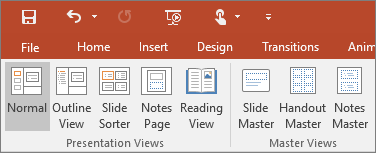
4. Views in presentation software
Different views are used for creating, organising and presenting slides.
- Normal View – main editing view with slide thumbnails on the side.
- Slide Sorter View – shows small versions of all slides for reordering.
- Slide Show View – shows the presentation full screen for delivery.
- Notes Page View – shows the slide with speaker notes.

5. Creating a new presentation
- Create a blank presentation.
- Use a template or theme for a pre-designed look.
- Save the file with a meaningful name (for example: ICDL_Presentation_Lesson1.pptx).
- Open an existing presentation from a folder or cloud storage.
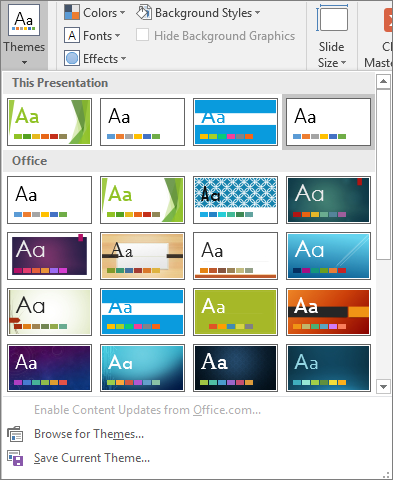
6. Using themes and design
Themes provide a consistent look for all slides.
- Set colours, fonts and background styles.
- Apply the same theme to all slides for a professional appearance.
- Avoid mixing too many colours or fonts.
7. Slide layouts
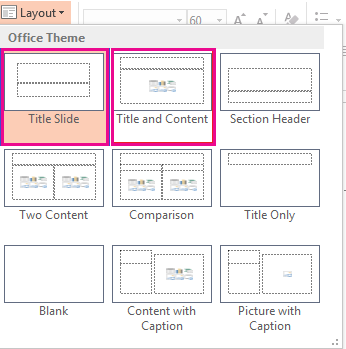
Slide layouts control the arrangement of content on a slide.
Common layouts include:
- Title Slide – for the presentation title and subtitle.
- Title and Content – heading with a content area.
- Two Content – side-by-side content areas.
- Blank – empty slide for custom design.
8. Basic text on slides
Text is usually added using placeholders on a slide.
- Click inside a placeholder to type.
- Use short bullet points instead of long paragraphs.
- Use large, clear fonts for readability (for example, 24 pt or larger for body text).
9. Saving and closing a presentation
- Save regularly while editing to avoid losing work.
- Use Save As to create different versions or save to another location.
- Close the file when finished.
10. Practical Activity
- Open your presentation software and create a new blank presentation.
- Apply a theme or design of your choice.
- Create a title slide with the title “ICDL Presentation Practice”.
- Add a second slide using the Title and Content layout and add three bullet points.
- Switch between Normal View, Slide Sorter View and Slide Show View.
- Save the file as ICDL_Presentation_Lesson1.pptx.