
Module 5 – Spreadsheets
Lesson 2 – Data Entry and Data Types
Understanding data types is essential for accurate calculations. Spreadsheets try to detect the type of data you enter. If the type is wrong (for example a date stored as text), formulas can give errors.
1. Types of data in spreadsheets
- Text – labels, headings, descriptions (example: January, Total Sales).
- Numbers – values used in calculations (example: 125, 12.5).
- Dates – entered in standard date format (example: 01/01/2025).
- Times – hours and minutes (example: 09:30).
- Logical values – TRUE or FALSE.
- Scientific notation – very large or small numbers shown as 1.2E+05 (ICDL requirement).

Show answer
It is a logical value.
2. Entering text
- Type text directly into a cell.
- Text is usually left-aligned.
- Use text for headings and labels (for example: Month, Quantity).
What alignment do you see?
They should appear left-aligned as text.
3. Entering numbers
- Type numbers without commas (use 1200, not 1,200).
- Do not type £ or $ – apply currency formatting later.
- Numbers appear right-aligned by default.
- Numbers starting with zeros must be entered as text using an apostrophe (example: ‘00123).
- Very large numbers may automatically convert to scientific notation.

Quick question: How do you enter a product code like 00123?
Type an apostrophe first: ‘00123 so it is stored as text.
4. Entering dates
- Use a standard date format (example: 01/01/2025).
- If recognised correctly, the spreadsheet will usually right-align the date.
- Dates are stored as serial numbers (ICDL requirement) so they can be used in calculations.
- If you type a date incorrectly, it may be stored as text and formulas will not work.
What is the difference?
The correct date should be right-aligned and treated as a date.
The one with an extra “x” will stay as text and not work in date calculations.
5. Entering time
- Use the format hh:mm (example: 14:30).
- Times behave like numbers and can be added or subtracted.
Quick check: Is 09:00 + 1:30 possible in a spreadsheet?
Yes – times are stored as numeric values so you can add/subtract them.
6. Editing data
- Double-click a cell to edit its contents.
- Edit in the Formula bar at the top.
- Press Delete to clear a cell.
- Press F2 (Excel) to quickly enter edit mode.
- Type Appl in A2 by mistake.
- Press F2 and correct it to Apple.
7. Common data entry errors
- ##### – the column is too narrow to display the value (often with dates or big numbers).
- #VALUE! – incorrect data type in a calculation (for example, adding text to a number).
- #NAME? – a function name is typed incorrectly (for example, =SUMM(A1:A5) instead of =SUM).
- ‘123 – number stored as text (due to an apostrophe at the start).

Show answer
Widen the column (drag the column boundary) so the value can be displayed.
8. Data formatting
Formatting changes how data looks, not the underlying value.
- Currency – adds symbols such as £ or $.
- Percentage – converts decimals into percentages (0.2 → 20%).
- Number format – controls decimal places.
- Date formats – short date, long date, custom formats.
- Rounding – formatting may visually round numbers but calculations use the full value.
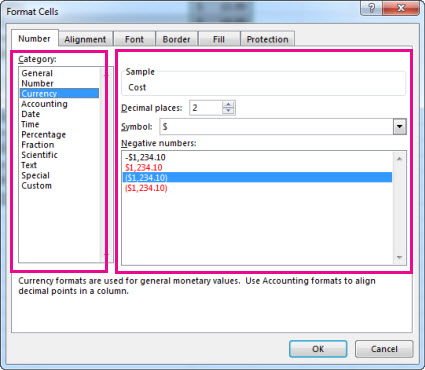
Quick question: Does changing the number of decimal places change the real value?
No – it only changes how many decimals are shown, not the stored value.
9. Best practices for accurate data
- Use one consistent data type per column.
- Do not mix text and numbers in the same column.
- Avoid blank rows inside your main data area.
- Place headings in the first row.
- Enter raw data first, then apply formatting.
Show answer
It can cause sorting, filtering and formulas to behave incorrectly or give errors.
10. Practical Activity
- Create a table with headings: Item, Quantity, Price, Date Purchased.
- Enter at least five rows of data.
- Format the Price column as Currency.
- Enter a date and apply a Long Date format.
- Intentionally cause a ##### error (narrow a column), then fix it.
- Look for any cells where numbers are left-aligned (they may be text) and correct them.
- Tell the difference between text and number alignment?
- Explain what causes #VALUE! and #####?
- Format a column as currency and a date column as long date?