
Advanced Module – Databases (Access)
Lesson 1 – Advanced Database Concepts and Design
This lesson reviews advanced relational database concepts and explains how to plan a well-designed database before building tables in Microsoft Access. Good design improves accuracy, consistency and long-term maintainability.
1. Relational database concepts (review)
A relational database stores data in related tables linked by key fields. This avoids duplication and ensures each piece of data is stored only once.
- Table – stores data about one subject (e.g. Customers, Orders).
- Record – a single row in a table (one person, one order).
- Field – a single item of data (FirstName, Price, OrderDate).
- Primary key – a unique identifier for each record (CustomerID).
- Foreign key – a field that links to a primary key in another table.
- Relationship – a defined connection between two tables based on key fields.
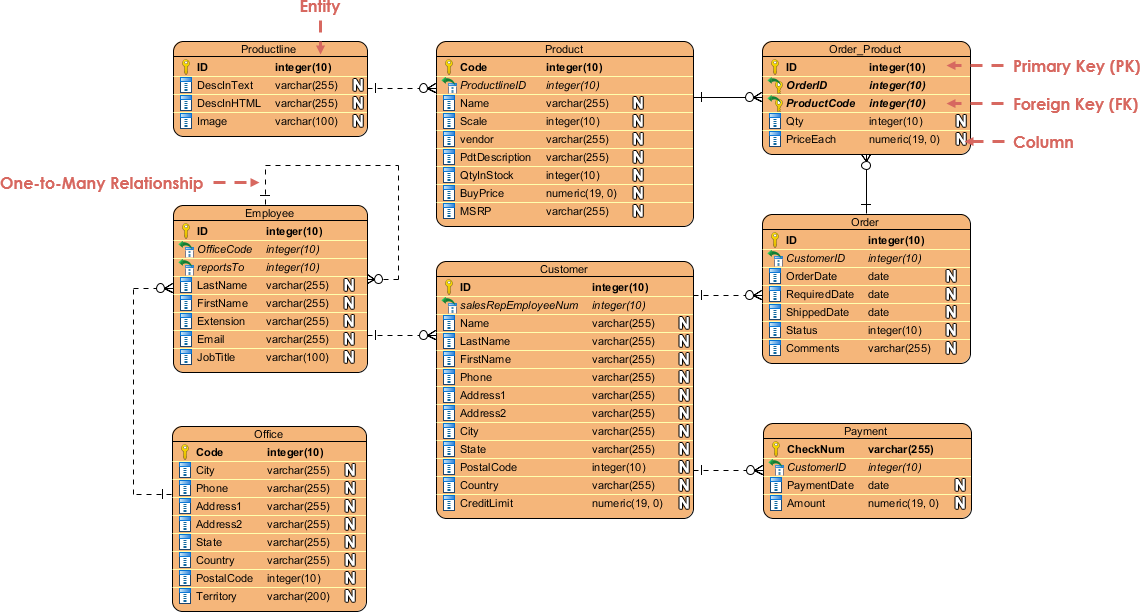
2. Normalisation and avoiding redundancy
Normalisation structures data so that each fact is stored in only one place. This reduces errors and ensures consistent updates.
- Avoid repeating data in multiple records.
- Create separate tables for separate subjects.
- Changes need to be made only once.
Example: Instead of storing customer address details in every order, keep them in a Customers table and link it to Orders.
How to think about normalisation
- Identify the information needed (Customers, Products, Orders, etc.).
- Group related fields into separate tables.
- Choose a clear primary key for each table.
- Use foreign keys to link tables correctly.
3. Planning a database
Before opening Access, planning helps avoid errors and improves consistency.
Step-by-step planning
- List the main entities (things): Customers, Orders, Products.
- For each entity, list the fields you need (Name, Price, OrderDate).
- Choose a primary key for each table (usually an AutoNumber ID).
- Identify relationships:
- One customer can have many orders (one-to-many).
- One product can appear in many order lines (one-to-many).
- Create a simple ERD showing tables and links.
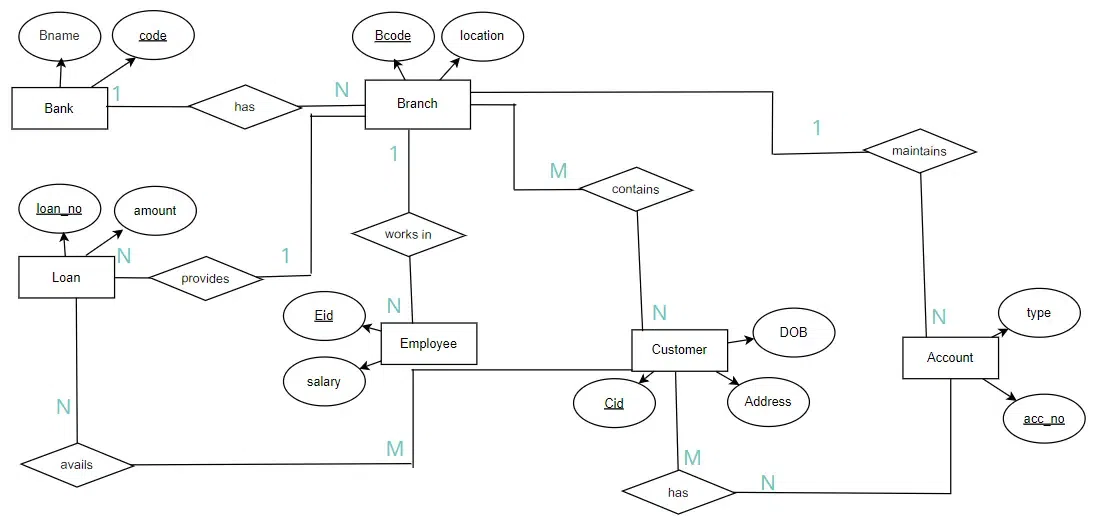
4. Primary keys and composite keys
- Use AutoNumber fields for simple, reliable primary keys (CustomerID).
- A composite key uses more than one field (e.g. OrderID + ProductID in OrderDetails).
- Composite keys are useful when a table represents the link between two entities.
How to set a primary key in Access
- Open the table in Design View.
- Select the field to use as the primary key.
- Click Primary Key on the ribbon.
- Save the table.
5. Data integrity and validation
Data integrity ensures accuracy and reliability. Access provides several tools to enforce valid data entry.
- Field validation rules (e.g. Quantity >= 0).
- Input masks for patterns (e.g. UK postcode, phone numbers).
- Required fields to prevent blank entries.
- Lookup fields to choose values from a list.
Example – Adding a validation rule
- Open the table in Design View.
- Select the field (e.g. Quantity).
- In Field Properties, find Validation Rule.
- Type >=0.
- Type a message in Validation Text: “Quantity must be 0 or greater”.
- Save the table.
6. Practical Activity
- Plan a simple Orders database with tables for Customers, Orders and Products.
- Choose primary keys for each table.
- Draw a diagram showing table relationships.
- Create one table in Access and set the primary key.
- Add one validation rule to a numeric field.