Advanced Spreadsheets
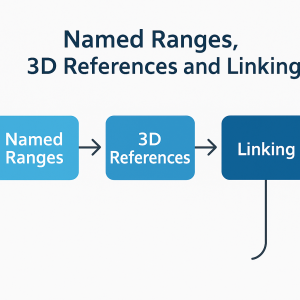
Lesson 2 – Named Ranges, 3D References and Linking
This lesson introduces named ranges, three-dimensional references, and workbook links. These skills support clearer formulas, structured models, and efficient spreadsheet management.
1. Named Ranges
Named ranges allow you to refer to cells and ranges using meaningful labels instead of cell references.
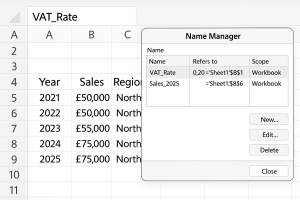
- Create a name for a single cell (for example, VAT_Rate).
- Create names for cell ranges (for example, Sales_2025).
- Use the Name Box and the Name Manager to create, edit, and delete names.
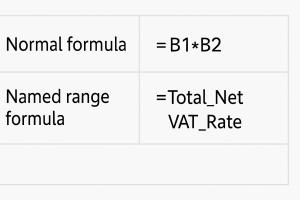
- Use named ranges in formulas (for example, =Total_Net * VAT_Rate).
2. Advantages of Named Ranges
- Make formulas easier to read and understand.
- Reduce errors when copying formulas.
- Allow quick navigation to important ranges via the Name Box.
3. 3D References (Multi-Sheet Formulas)
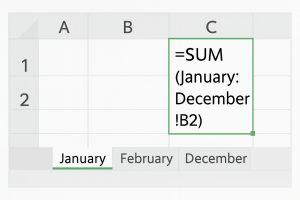
3D references allow formulas to refer to the same cell or range across multiple worksheets.
- Understand the 3D reference structure:
- =SUM(January:December!B2)
- Create totals across identical sheets (e.g., monthly sheets).
- Insert a new sheet inside the 3D range and observe how formulas update.
4. Linking Data Between Worksheets and Workbooks
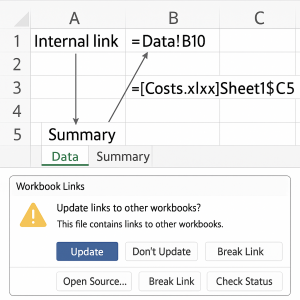
- Link a cell in one sheet to another (for example, =Data!B10).
- Link between workbooks (for example, =[Costs.xlsx]Sheet1!$C$5).
- Update, edit, and break links between workbooks.
- Understand risks of broken links when files are moved or renamed.
5. Paste Special Options
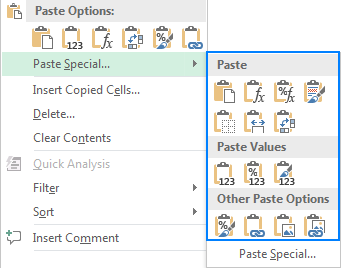
- Paste Values – store only the result of a formula.
- Paste Formats – copy formatting without content.
- Paste Formulas – copy formulas only.
- Paste Transpose – switch rows and columns.
- Use Paste Special operations (Add, Subtract, Multiply, Divide).
6. Good Practices for Links and Names
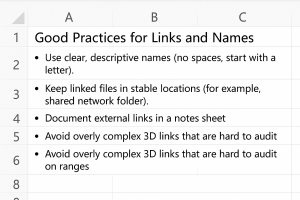
- Use clear, descriptive names (no spaces; start with a letter).
- Store linked files in stable locations (for example, shared network folder).
- Document external links in a Notes sheet.
- Avoid overly complex 3D links that are difficult to audit.
7. Practical Activity
Complete this activity to apply the lesson skills.
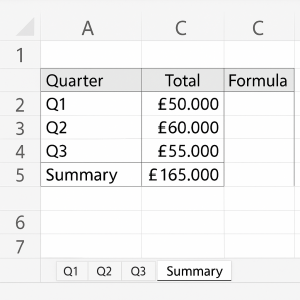
- Create three worksheets named Q1, Q2, Q3 with identical layouts.
- Define a named range for each quarter’s Total column.
- Create a Summary sheet that uses 3D references to total all quarters.
- Use Paste Special to copy formulas, formats, and values into a report area.