
Advanced Module – Presentations
Lesson 8 – Reviewing, Comments, Proofing and Collaboration
This lesson explains how to review a presentation, add comments, use proofing tools, compare versions, and collaborate with others. These tools help improve accuracy, communication and efficiency during group or professional presentation work.
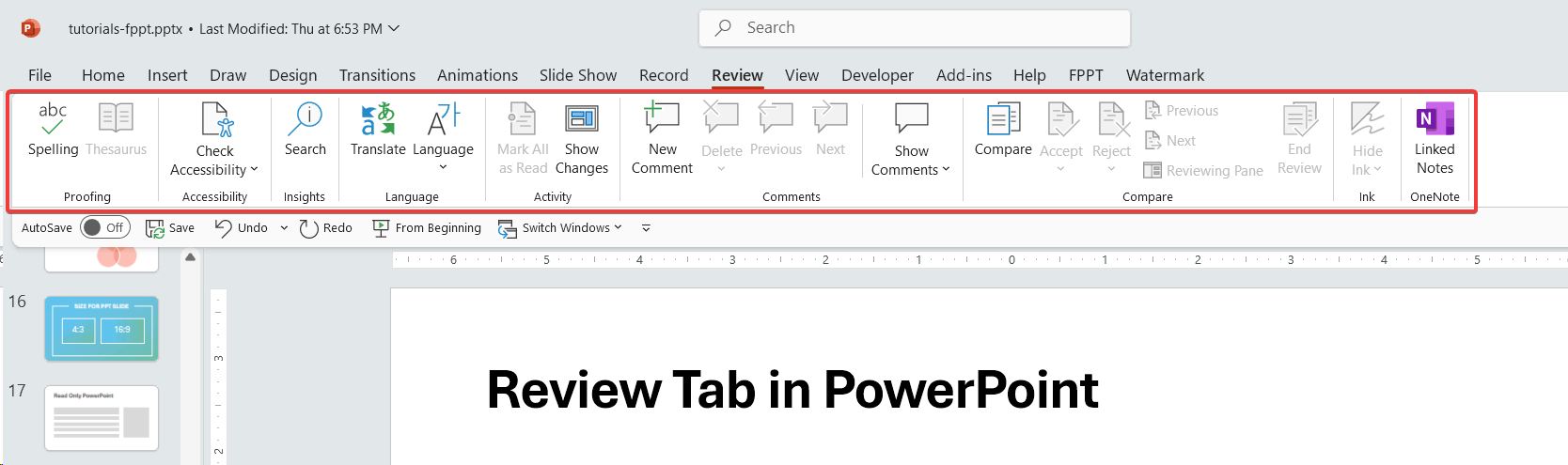
1. Proofing tools
Proofing tools help check spelling, grammar and clarity.
- Spelling & Grammar – identifies mistakes and suggests corrections
- Thesaurus – suggests synonyms to improve wording
- AutoCorrect – automatically fixes common typing errors
2. Running a spell check
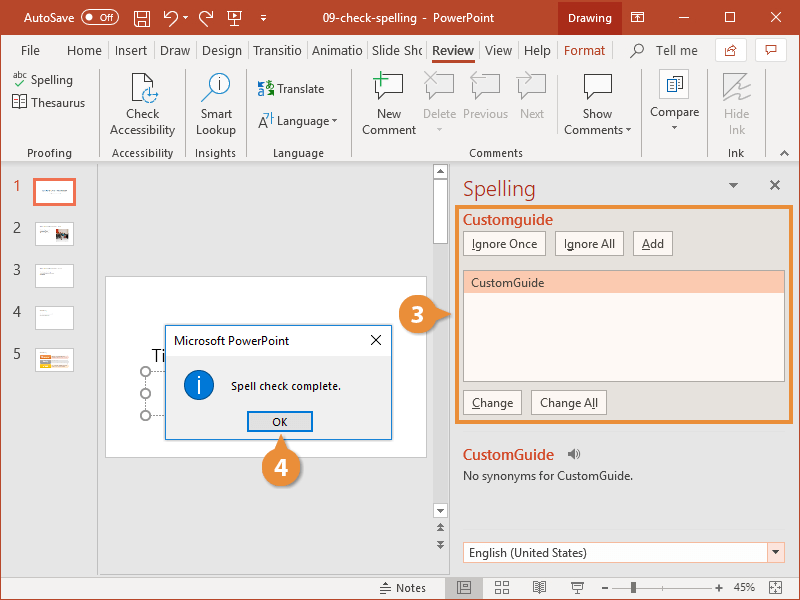
- Go to Review > Spelling
- Choose to ignore, change or add to dictionary
- Spell check runs through all slides and notes
3. Adding comments
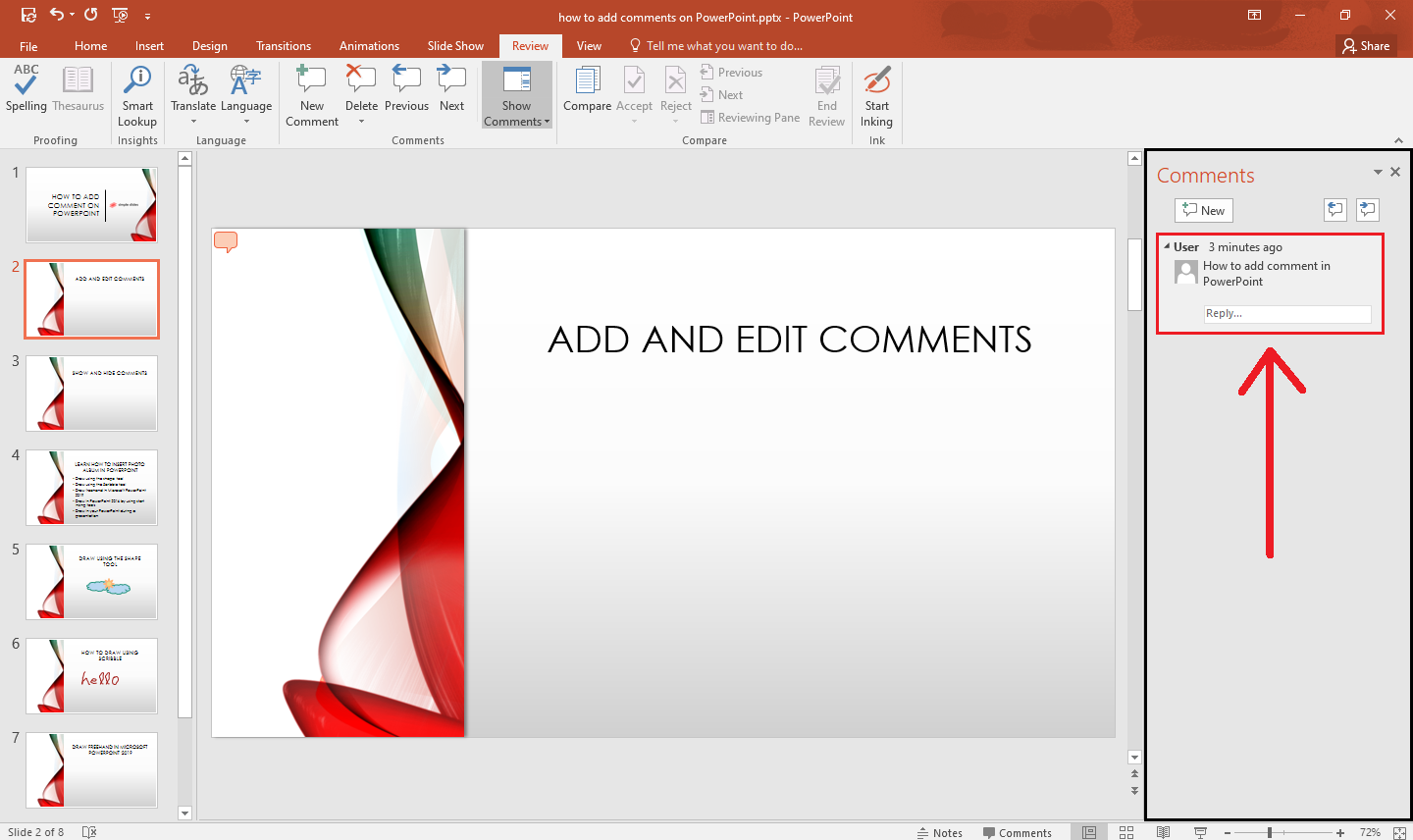
Comments are useful for feedback and collaboration.
- Select text or an object
- Go to Review > New Comment
- Type your comment in the comment pane
- Reply to comments or mark them as resolved
4. Reviewing comments
- Use Review > Next and Previous to move between comments
- Resolve comments once changes are complete
- Delete comments when no longer needed
5. Comparing presentations
You can compare two versions of the same presentation.
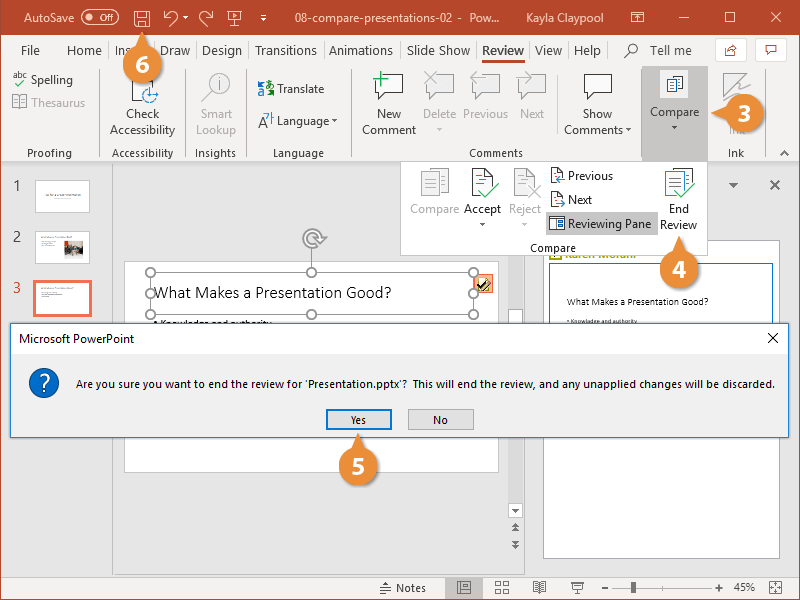
- Go to Review > Compare
- Select the presentation to compare with
- Accept or reject changes
- Merges differences into one updated file
6. Tracking changes (PowerPoint)
While not as detailed as Word’s Track Changes, PowerPoint highlights differences during comparison.
- Inserted slides marked as new
- Modified text highlighted
- Deleted content flagged for approval
7. Co-authoring and online collaboration
Cloud-based tools allow multiple people to edit the same presentation.
- Save to OneDrive or Google Drive
- Click Share to invite others
- Editors can work at the same time
- Comments and chat help communication

8. Version history
Version history lets you restore earlier versions.
- Go to File > Info > Version History
- View previous versions
- Restore or copy old content
![How to Recover Previous Version of PowerPoint File [Quick Fixes]](https://www.myrecover.com/screenshots/en/windows/ppt-version-history.png?utm_source=chatgpt.com)
9. Accessibility checking
Ensures your presentation is readable by everyone, including people with disabilities.
- Go to Review > Check Accessibility
- Fix issues such as missing alt text
- Improve contrast or reading order

10. Good practices for reviewing presentations
- Run a full spell check before sharing
- Use comments instead of editing someone else’s content directly
- Review changes one by one using Compare
- Use version history when working in teams
- Check accessibility for inclusive design
11. Practical Activity
- Run a spell check on an existing presentation
- Add three comments to different slides
- Compare two versions of a presentation and accept/reject changes
- Share a file using cloud storage
- Check the accessibility report and fix at least one issue