
Advanced Module – Word Processing
Lesson 2 – Advanced Text and Paragraph Formatting
This lesson covers the advanced text and paragraph formatting skills required to create structured, professional documents. You will learn how to refine text appearance, use advanced paragraph tools, manage indentation, apply lists, and maintain consistent formatting.
1. Advanced Text Formatting Tools
Text formatting helps you emphasise key points and improve readability. 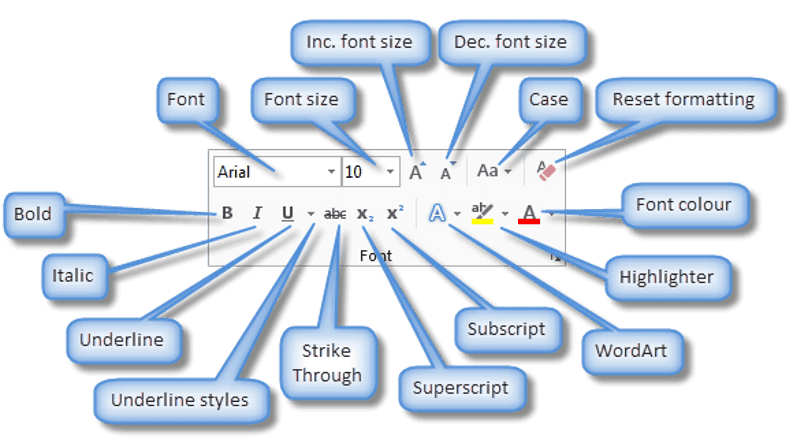
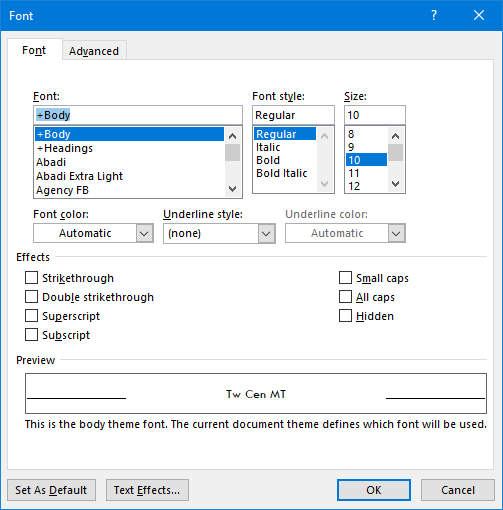
- Bold – highlight important text.
- Italic – emphasise words or titles.
- Underline – use sparingly for clarity.
- Font Size – adjust text size for headings/body text.
- Font Colour – use high-contrast colours.
- Text Effects – apply shadow, outline or glow carefully.
How to format text:
- Select the text.
- Go to the Home tab.
- Choose the required formatting options.
2. Advanced Paragraph Formatting
Paragraph formatting controls spacing, alignment and structure, supporting professional and accessible layout design.
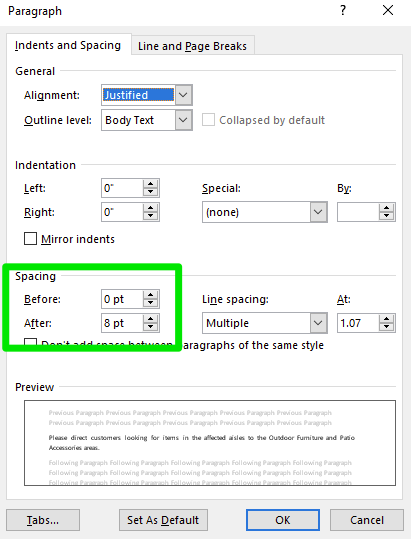

How to open full paragraph settings:
- Go to the Home tab.
- Click the small arrow in the Paragraph group.
You can adjust:
- Alignment – Left, Centre, Right, Justified.
- Line Spacing – Single, 1.15, 1.5, Double, Exactly.
- Spacing Before/After – manage white space between paragraphs.
- Indentation – Left and Right indents.
- Special Indents – First Line or Hanging.
3. First Line and Hanging Indents
First Line Indent – indents the first line of a paragraph (common in essays and reports). Hanging Indent – leaves the first line normal and indents the rest (used for bibliographies and reference lists).

How to apply:
- Open Paragraph settings.
- Under Indentation, choose:
- First Line
- Hanging
- Click OK.
4. Bulleted and Numbered Lists
Lists organise information clearly and improve readability. 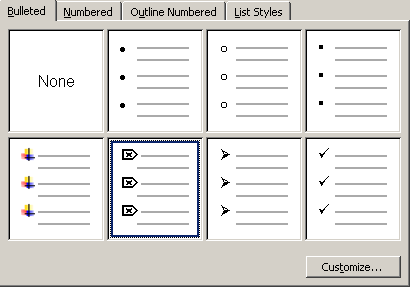

To add a list:
- Select the text.
- Go to Home → Bullets or Home → Numbering.
You can customise:
- Bullet style (dots, symbols, icons)
- Numbering style (1, a, i, 1.1 etc.)
- Multilevel lists for structured outlines
5. Multilevel Lists
Multilevel lists are useful for reports, outlines and structured documents.
- Go to Home → Multilevel List.
- Select a style format (e.g., 1 → 1.1 → 1.1.1).
- Press Tab to move to a deeper level.
- Press Shift + Tab to move back a level.

