
Advanced Module – Presentations
Lesson 2 – Slide Masters, Templates and Themes
This lesson explains how to use Slide Masters, themes and templates to ensure a consistent and professional design across the entire presentation. It is aligned with the ICDL Advanced Presentation syllabus section on Slide Masters and Templates.
1. What is a Slide Master?
The Slide Master controls the overall design of the presentation. Changes made to the Slide Master affect all slides that use its layouts.
- Manages fonts, colours and background styles.
- Controls placeholders, logos and layout positioning.
- Prevents inconsistent formatting across slides.

2. Creating and editing Slide Masters and layouts
- Go to View > Slide Master to open Slide Master View.
- Select Insert Slide Master to create a new slide master for your presentation.
- Select Insert Layout to create a new custom layout under the current slide master.
- Edit the Master Slide to change global formatting (fonts, colours, background, logo position).
- Edit individual Master Layouts to adjust specific slide types (e.g. title slide, content slide).
- Use Close Master View to return to Normal View when finished.
3. Theme colours, fonts and effects
Themes allow you to apply a unified professional appearance across all slides.
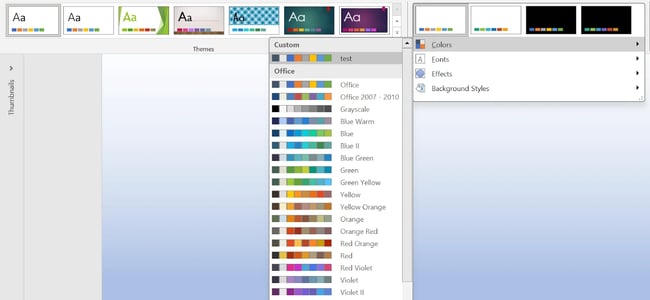
- Theme Colours – applies a consistent colour palette to text, shapes and backgrounds.
- Theme Fonts – sets heading and body fonts for all slides.
- Theme Effects – controls styles for shapes and graphics (lines, fills, shadows).
- Use the Design tab to choose or modify a theme and see a live preview on your slides.
4. Creating custom themes and templates
- Modify theme colours, fonts or background styles to match your organisation’s brand.
- Use Design > Save Current Theme to save your custom theme for reuse.
- Save a presentation as a template: File > Save As and choose PowerPoint Template (*.potx).
- Open an existing template file to modify it, then save it again as an updated template.
- Apply the same custom theme or template to multiple presentations for brand consistency.
5. Applying slide masters and layouts
- Select one or more slides in Normal View.
- Go to Home > Layout and choose the layout you created or modified in Slide Master View.
- Use different layouts from the same slide master for title slides, content slides, and comparison slides.
- Ensure that all slides use appropriate layouts instead of manual formatting.
6. Using templates
Templates are pre-designed presentations that include slide masters, colour schemes and sample slides.
- Select File > New to choose a template from the available options.
- Search for online templates (if available) for different presentation types.
- Templates save time and help maintain a consistent, professional appearance.
- Open a template, customise it (e.g. change logo, colours, fonts) and save as your own file.
7. Inserting logos, backgrounds and branding
- Add logos to the Slide Master so they appear automatically on all relevant slides.
- Use subtle background images or solid colours that do not distract from text and graphics.
- Apply background styles in Slide Master View so they are consistent across all layouts.
- Avoid busy backgrounds that reduce readability or clash with text colours.

8. Slide layout management
- Modify existing layouts in the Slide Master to match your content needs.
- Duplicate layouts when you need variations based on an existing design.
- Rename layouts for clarity (for example, “Title and Image”, “Two Column Content”).
- Ensure layouts contain the correct placeholders (title, content, picture, footer, date, slide number).
9. Resetting slides
If a slide becomes messy or inconsistent, you can quickly restore the layout formatting.
- Select the slide and choose Home > Reset to reapply the current layout’s default formatting.
- Use Reset to remove manual formatting that does not match the slide master.
10. Best practices for themes and slide masters
- Edit the Slide Master and layouts before creating most of your slides.
- Use one theme per presentation to keep the design consistent.
- Keep branding simple and professional—avoid too many fonts and colours.
- Use consistent placement for headings, logos and content areas.
- Use layouts instead of manual formatting to maintain consistency and save time.
11. Practical Activity
- Open Slide Master View using View > Slide Master.
- Insert a new slide master and add a logo to the footer area of all its layouts.
- Change theme colours and fonts to match a selected brand or organisation.
- Create a new custom layout with an extra text placeholder and rename the layout clearly.
- Return to Normal View and create a new slide using your custom layout.
- Apply your custom layout to at least three different slides.
- Save the theme as “ICDL_Custom_Theme.thmx”.
- Save the presentation as a template file (for example, “ICDL_Presentation_Template.potx”).