
Advanced Module – Word Processing
Lesson 8 – Reviewing, Protection and Collaboration
This lesson teaches you how to review documents using Track Changes, comments, comparison tools and document protection. These features are essential when multiple people are reviewing or editing the same document in a professional environment.
1. Track Changes
What it does: Track Changes records every edit—insertions, deletions and formatting—so reviewers can clearly see what has changed.
How to turn it on:
- Go to Review → Track Changes.
- The button highlights when tracking is active.
What happens when it is on?
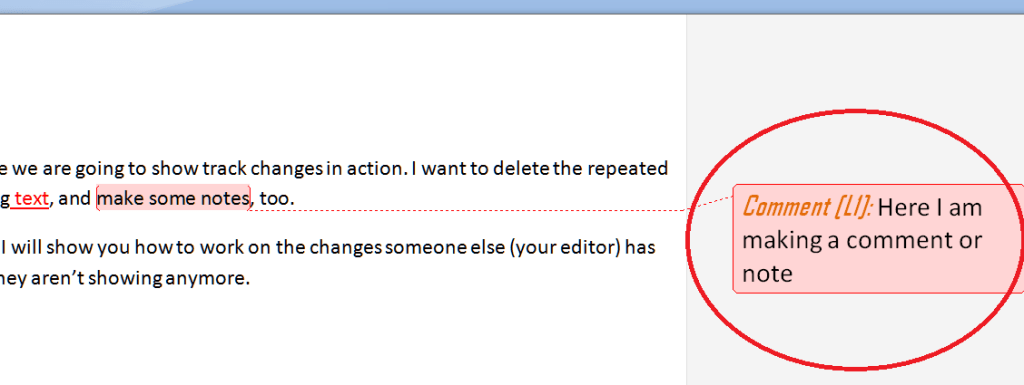
- Added text appears underlined or coloured.
- Deleted text shows with a strikethrough.
- Formatting changes appear in balloons in the margin.

2. Comments
How to add a comment:
- Select the text you want to comment on.
- Go to Review → New Comment.
- Type your message in the comment balloon.
Managing comments:
- Click a comment and choose Reply to continue a discussion.
- Right-click a comment and select Resolve when an issue is completed.
3. Reviewing changes
How to move through tracked changes:
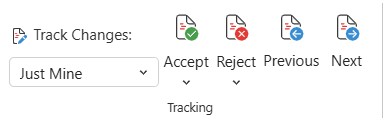
- Use Review → Next and Previous to move between changes.
Deciding what to keep:
- Accept to approve a change.
- Reject to remove it.
- You can accept/reject changes individually or all at once.
4. Comparing and combining documents
Compare:
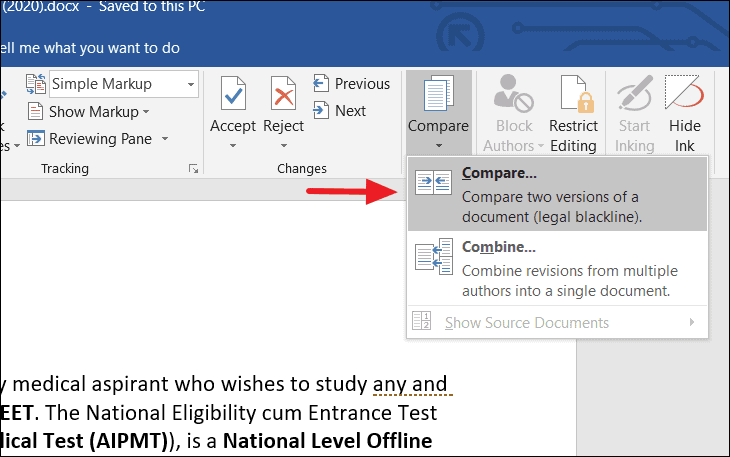
- Go to Review → Compare.
- Select the original document and the revised version.
- Word creates a third document showing all differences.
Combine:
- Use Combine when two reviewers edited separately.
- Word merges both sets of changes into one master document.
5. Protecting documents
Edit restrictions:
- Go to Review → Restrict Editing.
- Choose the restriction type:
- Read-only
- Comments only
- Tracked changes only
- Fill in forms
- Select Yes, Start Enforcing Protection.
Password protection:
- You can add a password to enforce restrictions.
- The password must be used to remove protection later.

6. Document properties and finalising
To view or edit document properties:
- Go to File → Info.
- Edit the title, author, tags or subject.
To inspect the document:
- Select Check for Issues.
- Remove hidden data such as comments, tracked changes or personal information.
Mark as Final:
- Marks the document as read-only for casual editing (not a secure protection method).
7. Collaboration and versioning
- Use shared platforms such as OneDrive or SharePoint for collaboration.
- Use Version History to open or restore older versions.
- Avoid emailing multiple versions, which causes confusion.
8. Accessibility and readability checks
Why check accessibility? Ensures the document is readable by all users, including those using screen readers.
How to run an accessibility check:
- Go to Review → Check Accessibility.
- Fix issues such as:
- Missing headings
- Missing alt text
- Low colour contrast
- Incorrect reading order
9. Good practices for reviewing and protection
- Accept or reject all tracked changes before finalising.
- Use edit restrictions for sensitive work.
- Use comments and Track Changes instead of overwriting text.
- Keep shared files in one controlled location.
10. Practical Activity
- Turn on Track Changes and edit a sample document.
- Add three comments and reply to one.
- Accept and reject selected changes.
- Restrict editing so only comments are allowed.
- Run an Accessibility Check and fix issues.