
Advanced Module – Word Processing
Lesson 7 – Advanced Graphics, Images and Objects
This lesson explains how to insert, format and manage images, shapes and objects in professional documents. You will learn how to control wrapping, alignment, grouping, layering and accessibility settings.
1. Inserting images
How to insert an image:
- Go to Insert → Pictures.
- Select This Device to choose an image from your computer.
- Click Insert to place it in the document.
- For online images: Insert → Pictures → Online Pictures.

2. Resizing images correctly
- Click the image once to select it.
- Drag a corner handle to resize without distortion.
- Avoid dragging from the sides (this stretches the image).
- For exact sizes, use Picture Format → Size.
3. Cropping and enhancing images
- Select the image and go to Picture Format → Crop.
- Drag the crop handles to remove unwanted parts.
- Use Corrections and Color to improve clarity.

4. Text wrapping and image positioning
How to wrap text:
- Select the picture.
- Click the Layout Options button or go to Picture Format → Wrap Text.
Common wrap types:
- In Line with Text – image behaves like text.
- Square – text wraps around all sides.
- Tight – text hugs the shape more closely.
- Top and Bottom – text appears above and below the image.
Insert Image Placeholder: “Wrap Text options”
5. Aligning and distributing objects
- Select multiple objects using Ctrl + Click.
- Go to Picture Format / Shape Format → Align.
- Choose alignment options:
- Align Left / Centre / Right
- Align Top / Middle / Bottom
- Distribute Horizontally / Vertically
6. Shapes, Icons and SmartArt
Shapes:
- Insert via Insert → Shapes.
- Edit using Shape Format (fill, outline, effects).
Icons & SmartArt:
- Insert icons with Insert → Icons.
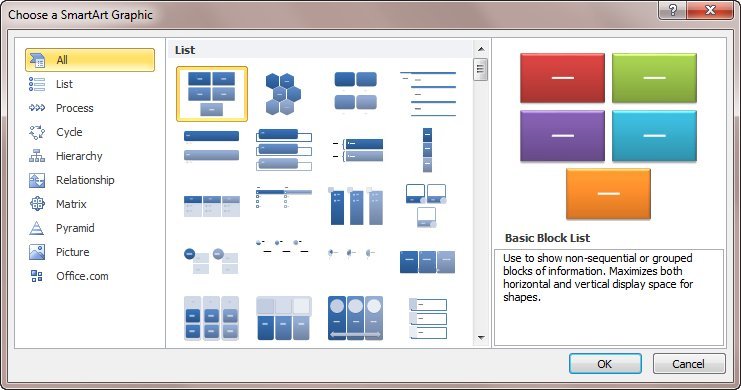
- Insert diagrams with Insert → SmartArt.
- Useful for workflows, processes and visual summaries.
7. Grouping and ordering objects
To group objects:
- Select all objects using Ctrl + Click.
- Right-click → Group → Group.
- The group can now be moved or resized together.
To reorder objects:
- Right-click an object.
- Select Bring Forward or Send Backward.
- Use Bring to Front / Send to Back for full layering control.
8. Anchoring and fixing image positions
- Open Layout Options on an image.
- Choose:
- Move with text – image stays attached to its paragraph.
- Fix position on page – image stays in one exact location.
9. Captions and Accessibility (Alt Text)
- Right-click an image → Insert Caption to label figures.
- Right-click image → Alt Text to describe the image.
- Good example: “Flowchart showing project planning stages.”
10. Good Practices for Images and Objects
- Use images that support the message, not distract.
- Keep colours, borders and styles consistent.
- Align objects neatly using the Align tools.
- Check the document in Print Preview before finalising.
11. Practical Activity
- Insert two images into a blank document.
- Resize both using corner handles.
- Apply Square wrapping to each.
- Insert a SmartArt diagram with three steps.
- Group a shape and a text box.
- Add a caption and Alt Text to an image.
- Send one object behind another using Send to Back.