
Advanced Module – Databases (Access)
Lesson 4 – Advanced Select Queries
This lesson focuses on advanced select queries in Access, including criteria, wildcards, parameters, calculated fields, built-in functions and aggregate (summary) queries. These skills help you extract accurate, meaningful information from relational data.
1. Using criteria with wildcards
Criteria reduce the rows shown in a query. Wildcards help match text patterns.
- * – matches any number of characters
- ? – matches a single character
Examples:
- LastName Like “Sm*” – names starting with “Sm” (Smith, Small).
- City Like “*London*” – any city containing “London”.
- Postcode Like “SW? *” – SW plus one character (e.g. SW1, SW3).
Common criteria operators (ICDL requirement):
- > , < , >= , <=
- Between … And …
- Is Null / Is Not Null
- In (“London”,”Bristol”,”Cardiff”)
How to add criteria
- Open the query in Design View.
- In the design grid, go to the Criteria row.
- Type your expression, e.g. >= Date() or Like “Sm*”.
- Run the query to see the filtered results.
2. Parameter queries
Parameter queries prompt the user to type a value when the query runs.
Example:
- [Enter city:] – prompts for a city name.
How to create a parameter query
- Open the query in Design View.
- In the Criteria row, type a prompt in square brackets (e.g. [Enter start date:]).
- Run the query – Access displays a prompt box.

3. Calculated fields in queries
Calculated fields perform calculations using values from other fields.
Examples:
- TotalPrice: [Quantity] * [UnitPrice]
- FullName: [FirstName] & ” ” & [LastName]
- YearJoined: Year([JoinDate])
How to add a calculated field
- Open the query in Design View.
- In a blank column, click in the Field row.
- Type a calculation, e.g. TotalPrice: [Quantity]*[UnitPrice].
- Run the query to view the new calculated column.
4. Built-in functions in queries
Access supports many built-in functions inside queries.
- Date() – today’s date.
- Now() – date and current time.
- Year([DateField]) – extracts the year.
- IIf(condition, true, false) – conditional logic.
Example: IIf([Balance] > 0, “Owing”, “Paid”).
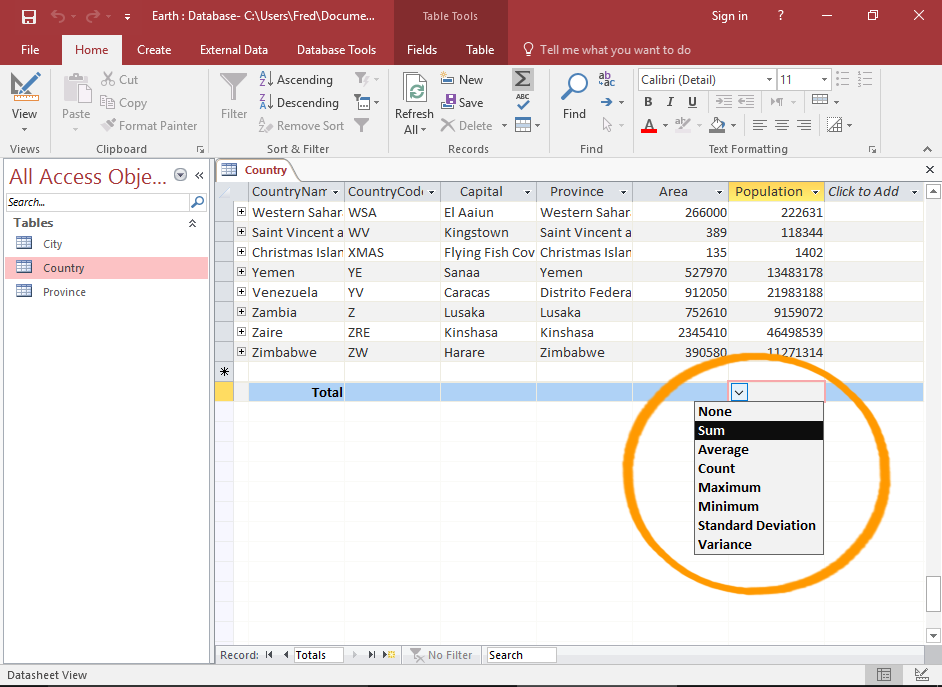
5. Totals and aggregate queries
Totals queries summarise data and group records using aggregate functions.
Common aggregate functions:
- Sum – total of numeric values.
- Avg – average.
- Count – number of records.
- Min / Max – lowest / highest values.
How to create a totals query
- Open or create a query in Design View.
- Select Totals (Σ button).
- A new Total row appears in the design grid.
- Leave Group By for grouping fields (e.g. Customer).
- Change to Sum, Avg, Count, etc. for numeric fields.
- Run the query to view the summary output.
6. Crosstab queries (overview)
Crosstab queries summarise information in a matrix format using rows and columns.
- Row headings: e.g. Months.
- Column headings: e.g. Product categories.
- Value field: e.g. Sum of SalesAmount.
How to create a crosstab query using the wizard
- Go to Create > Query Wizard.
- Select Crosstab Query Wizard.
- Choose the table or query.
- Select row headings, column headings and the value field.
- Finish and run the query.
7. Practical Activity
- Create a select query showing customers in a chosen city using a parameter.
- Add a calculated field showing Total = Quantity × UnitPrice.
- Create a totals query summarising total sales per customer.
- Experiment with wildcards in criteria (e.g. Postcode Like “SW*”).
- Use the Crosstab Query Wizard to summarise monthly totals for each product.